
The Logic Map
The Logic Map shows every visibility rule in your form in one place. Check it before you publish any form that has visibility rules.
To open it, click Logic Map in the builder’s top bar. Click Canvas to go back.
It has two tabs: Rules and Map.
The Rules tab
Section titled “The Rules tab”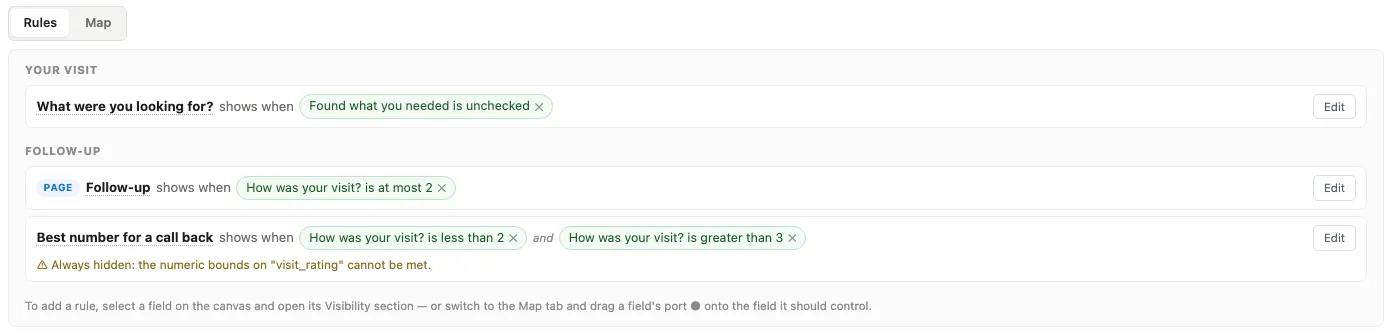
Rules lists every rule as a plain-English sentence, grouped by page. For example: Dietary needs shows when Staying for dinner is checked.
- Click a field’s name to open it in the Field Settings panel.
- Click Edit to change the rule.
- Click the ✕ on a condition to remove it.
- A warning appears under any rule with a problem.
If the form has no rules yet, the tab says so: every field is always shown.
The Map tab
Section titled “The Map tab”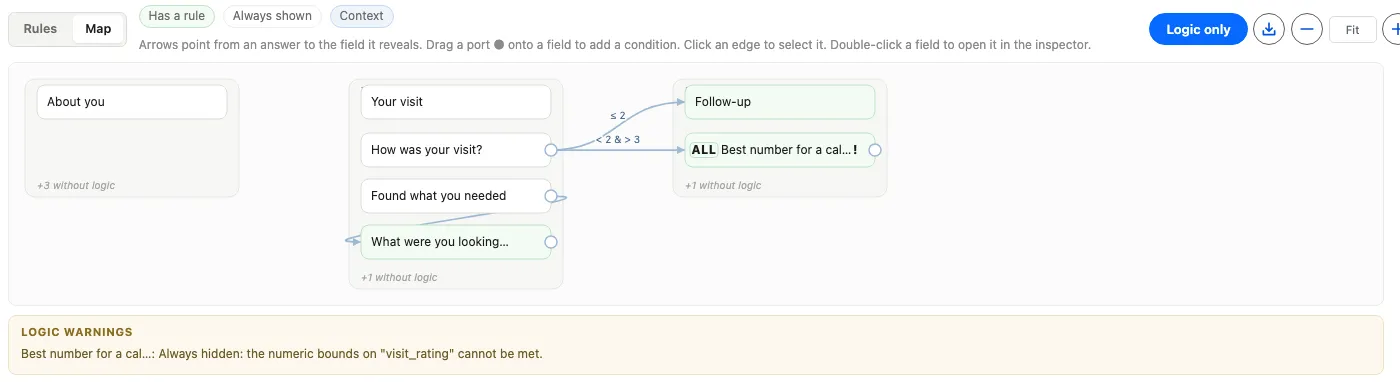
Map draws the form as a diagram. Each page is a column and each field is a box. Arrows point from an answer to the field it shows.
- Add a condition by dragging the small dot (●) on one field onto the field it should control.
- Click an arrow to select it, and edit or remove that condition.
- Double-click a field to open it in the Field Settings panel.
- Logic only hides fields that no rule uses. It keeps both ends of every rule: fields that have a rule, and fields a rule depends on.
- Export as SVG downloads the diagram as an image.
- Use the zoom buttons to zoom in and out, or click the percentage to fit the diagram to the width.
Warnings to look out for
Section titled “Warnings to look out for”Problems are listed under Logic warnings on the Map tab, and under each rule on the Rules tab. The ones you are most likely to see:
- Always hidden. The rule can never be met, for example because it needs the same field to equal two different values at once.
- A rule that uses a field later in the form. The respondent answers it after the question it controls.
- A rule that names a field not on the form, usually because that field was renamed or deleted.
- Fields that depend on each other in a loop. If the loop includes a “not” condition (such as “does not equal”), it can never settle: every field in the loop is hidden and their answers are not saved. You cannot publish until you change one of the rules to break the loop.
- A long chain of rules. When one rule depends on another, which depends on another, and so on, the map warns once the chain reaches nine conditions. Past that, the fields at the end of the chain are hidden from respondents. Usually you can combine most of the chain into one rule with several conditions.
Try the rules as a respondent
Section titled “Try the rules as a respondent”The Logic Map shows your rules, but it does not run them. To see them in action, click Preview form in the top bar and answer the questions as a respondent would.
Preview shows the last saved draft. If you have unsaved changes, it asks whether to Save and preview or Preview last saved version.
Note: a rule loop that can never settle stops you publishing, so it is worth finding here first. See Publishing a form.