
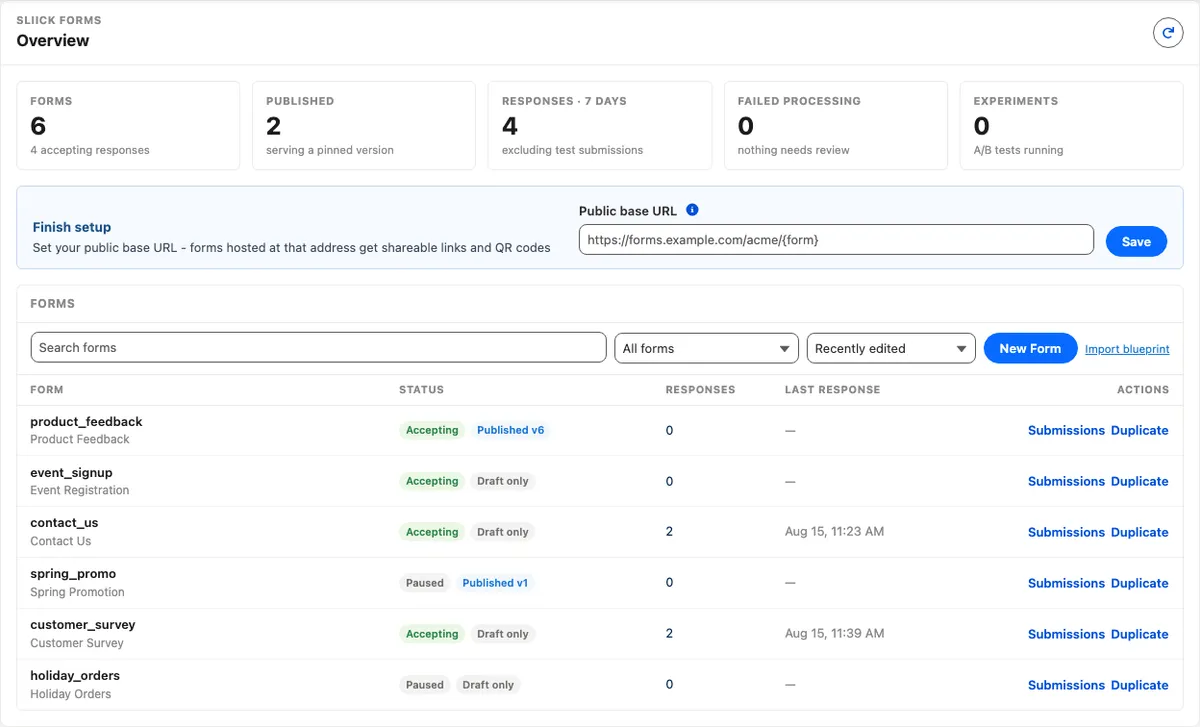
Sliick Forms v0.3 is now on the AppExchange
Sliick Forms v0.3 is live on the Salesforce AppExchange, and it is free.
This article announced v0.3. The current release is v0.8, and installing from the AppExchange gets you the latest version. See what’s new in v0.8, or read the Sliick Forms documentation for how the product works today.
Sliick Forms is a native form engine for Salesforce. You build a form in a drag-and-drop builder, map each field to an object and field, and publish it. Respondents fill it in on an Experience Cloud page, whether that page is behind portal login or open to the public. Every answer lands on the right Salesforce record, with nothing copied by hand and no third-party service holding your respondents’ data.
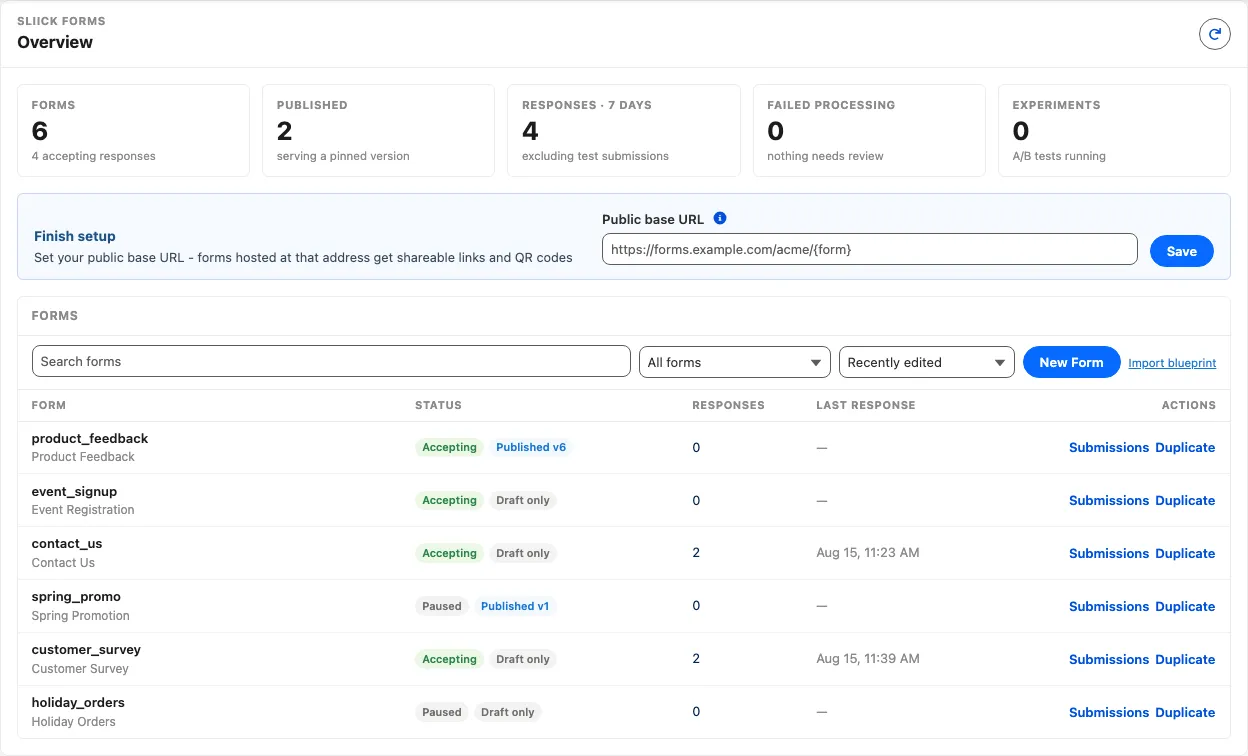
The problem it solves
Most Salesforce orgs collect data from outside the org, and the usual arrangement is a separate form tool. The answers arrive in that tool’s database, and somebody, or some integration, moves them into Salesforce afterwards.
That handover creates work: re-keying, duplicate records created because the form did not know the person already existed, uploads that never reach the record, and a data model maintained in two places.
Sliick Forms removes the handover. The form definition is Salesforce metadata, the submission is a Salesforce record, and mapping an answer onto a Contact field is a picker in the builder rather than an integration.
What is in v0.3
Drag-and-drop authoring
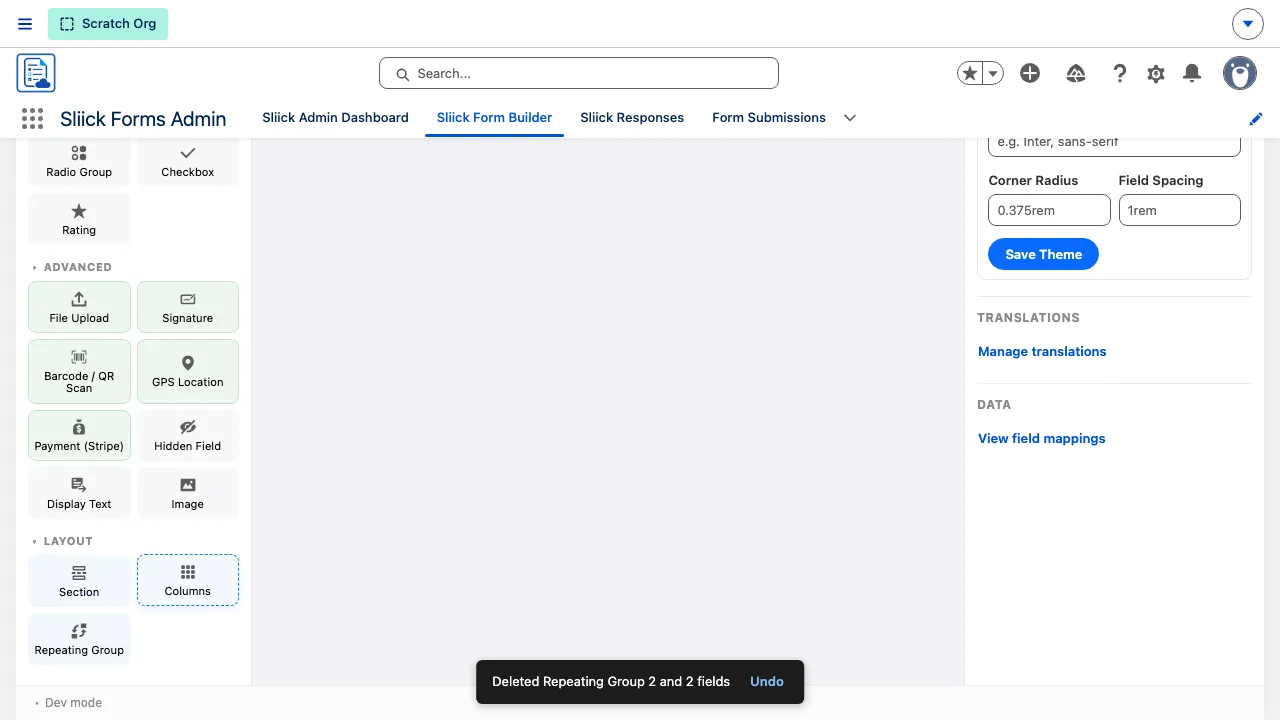
Drag a field from the palette to an exact position on the canvas, with a drop indicator showing where it will land. Drag a card back to the palette to remove it. Sections and repeating groups move and delete as a unit, and deleting one shows a snackbar naming what went with it, with an Undo.
The canvas renders your form the way a respondent will see it, editing controls appear when you point at a card, and each page of a multi-page form is shown as its own sheet.
Conditional logic
Visibility rules are built as numbered condition cards with All or Any matching, and each rule reads back in plain English: Shown when Reason for Contact equals Support. Condition values offer the field’s real options rather than free text, and an Advanced toggle shows the raw expression when you need it.
Switch the view toggle to Logic Map to see the whole form’s logic at once: a dependency graph, a list of every rule, and a simulation mode where you answer the driving fields and see which dependent fields a respondent would get.
Rules that depend on each other resolve correctly. A hidden question’s answer reads as blank to every rule that references it, so a follow-up question hides as soon as the answer above it changes. Answers a respondent could not see are stripped in the browser and again on the server, so what lands on the record matches what the review screen showed.
Pages, sections, and repeating groups
Pages are managed from a tab bar. Add, rename, duplicate, delete, or add a visibility rule to any page, including the first. Deleting a page confirms first and counts the fields going with it.
Sections are real groups: a rule on a section hides everything inside it, and its fields are wrapped in a bordered group styled from your theme. A labelled section can be collapsible, and can start collapsed. Collapsing is presentation only, so answers are kept, rules keep working, and required fields still apply.
Repeating groups collect line items, attendees, or assets. They support columns and description text in every row, and they can be nested, with inner rows creating their child records under the right parent.
Mapping, matching, and record types
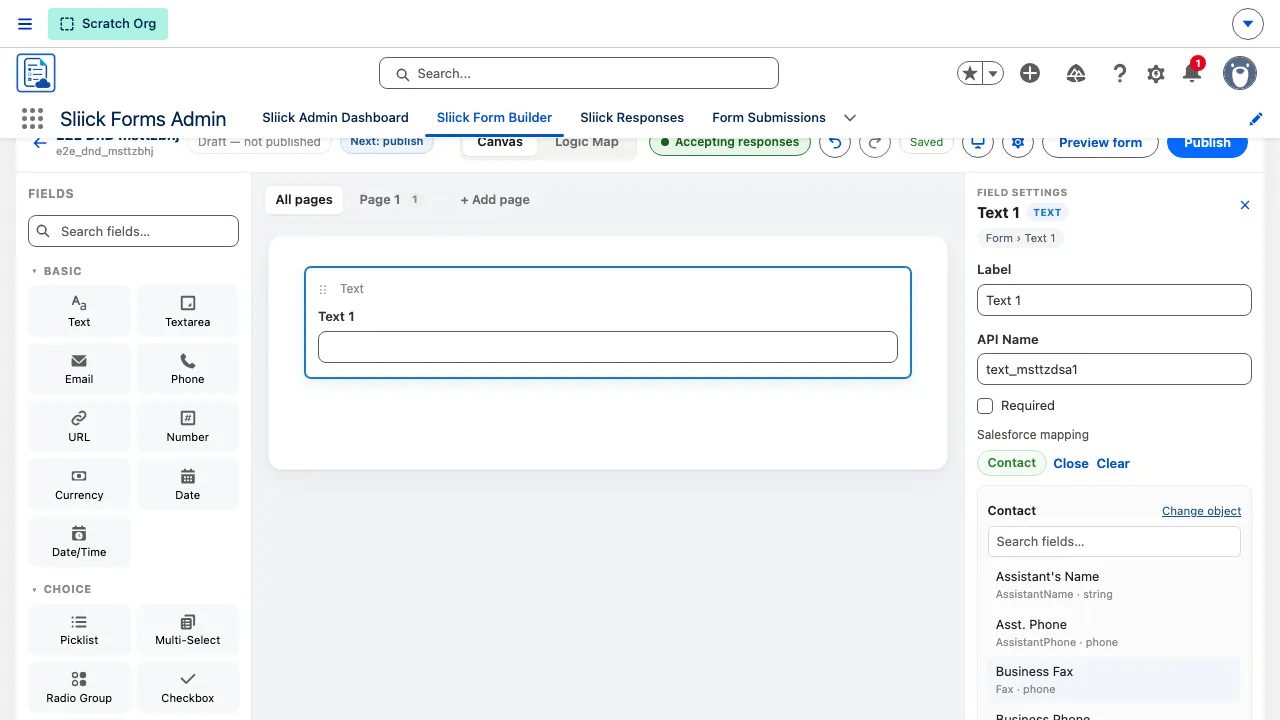
Map each field to an Object.Field target from the inspector, and review every mapping at once in the field mappings overview, where a match badge shows which fields form the key.
Tick Use for matching and a submission updates an existing record instead of inserting a new one. Every ticked field on an object is combined into a single match key, so a form matching on Email and Last Name requires both to agree before it will update an existing record. If a submission leaves any ticked field unanswered, it inserts rather than matching on the answered subset.
Where a mapped object has more than one record type, the form chooses which one new records get, and publishing is blocked until you have chosen. The choice applies only to records the form creates, so a form never changes the record type of a record it did not create.
Publishing, versions, and A/B tests
Publishing snapshots your draft into a fixed version that respondents see, while your draft carries on independently. Versions can be compared against each other and against your current draft, and any version can be restored.
Publishing a form for the first time also makes it live and starts it accepting responses. Whether a form is accepting responses is shown and toggled in the builder header, and a closed form tells respondents it is closed rather than that it does not exist.
From any earlier version you can start a 50/50 A/B test against the live version, watch live counts and a significance readout, then promote the challenger or keep the champion.
The responses console

Submissions stage in your org first. Click a row in the responses console to see a dry run titled What processing would do, which lists each record processing would create or update, the values it would write, and whether the submission matches an existing record.
If an answer arrived wrong, correct it in the panel and then process. Corrections are stored as an overlay, so the original submission is unchanged and stays auditable. Processing runs under your own permissions, so it fails with a clear error rather than writing records you would not be allowed to write yourself.
Public forms
Place the packaged Sliick Experience Form component on an Experience Cloud page and point it at a form. Or leave its Form External ID blank and let a single page serve every form from a ?form= parameter in the URL, so you do not build one page per form. Set the org-wide base URL once on the dashboard and every form gets a share link and QR code from it.
Links are resolved rather than guessed. A form’s own Share URL is used first, then the org-wide template. When neither is set, the builder says the form has no link yet instead of showing a URL that would 404.
Setup
Internal forms need only the package and a permission set. Install it, assign Sliick Forms Admin to your authors, and you can build and publish.
Public forms also need your Experience site’s guest user configured, because Salesforce does not allow a managed package to ship a site guest profile. Two steps matter most:
- Assign the packaged Sliick Forms Submitter permission set to the site guest user. That covers everything the package can grant. Without it, guests see “Unable to load form”.
- Create the guest sharing rule on Form Definition with filter logic
1 OR 2onIs ActiveandWas Published. A sharing rule cannot be packaged, and without the second criterion a closed form reads to respondents as one that never existed.
The Complete User Guide covers guest setup with a checklist.
Install it and send us feedback
Install Sliick Forms free from the AppExchange, assign the Sliick Forms Admin permission set, and build a form with it. The Complete User Guide covers install, authoring, mapping, publishing, Experience Cloud placement, and the guest setup public forms need.
Then send your feedback to support@sliick.com: bugs, rough edges, a field type you need, or a workflow the builder does not fit. Every message is read by the people who build the product, and what arrives there decides what goes into 1.0.
To help us act on a report quickly:
- For a bug, include the form’s external ID, whether the form is public or internal, and what you expected to happen.
- For a feature request, describe the task you are trying to complete, not only the feature you have in mind.
Related links:
- Sliick Forms product page for the overview and install link.
- Sliick Forms: Complete User Guide for the full reference.
- Book a walkthrough if you would prefer a demonstration.