When you send an agreement for signature from an opportunity, the deal is won once everyone has signed: the customer, and anyone on your team who countersigns. The Flow in this guide closes the opportunity for you at that moment. It sets the opportunity’s Stage to Closed Won and its Close Date to the day the last person signed.
It uses standard Flow Builder only, so you don’t need any code. It works with Sliick Docs e-signature, which is free on the AppExchange.
Before you start
Send the agreement from the opportunity. Sliick Docs remembers which record a request was sent from, and the Flow uses that to find the opportunity. See Sending a document.
What the Flow watches
Each request you send is a Signature Request record (sliick__Doc_Signature_Request__c). Three of its fields matter here:
- Status (
sliick__Status__c) changes to Completed when the last signer signs. A request that is declined, cancelled or expires never reaches Completed, so the Flow leaves its opportunity alone. - Completed At (
sliick__Completed_At__c) is when that last signature arrived. - Source Record Id (
sliick__Source_Record_Id__c) is the Id of the record you sent from.
Build the Flow
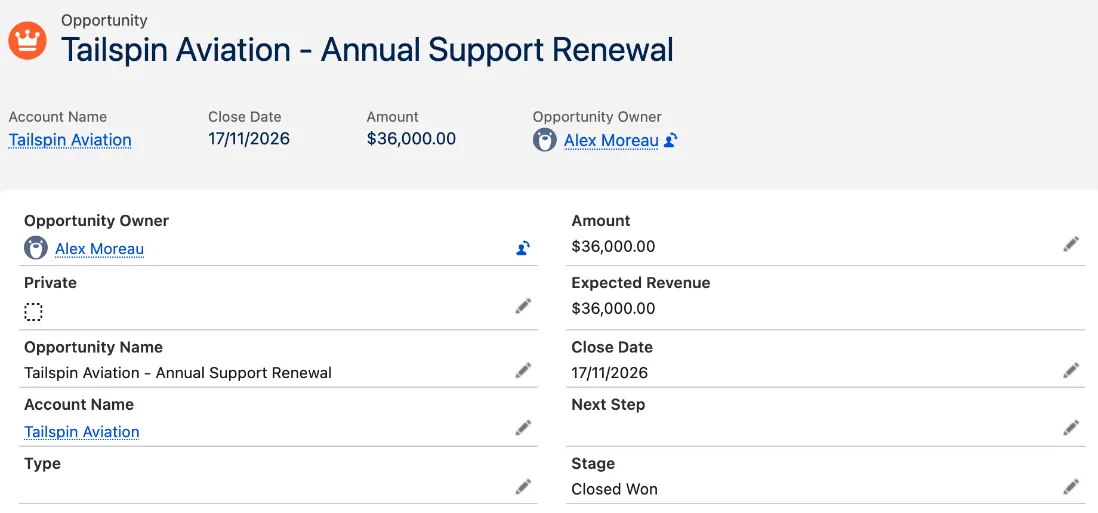
The screenshots below use an example opportunity, Tailspin Aviation - Annual Support Renewal, signed by the customer and then countersigned by the account owner.
1. Create a record-triggered Flow
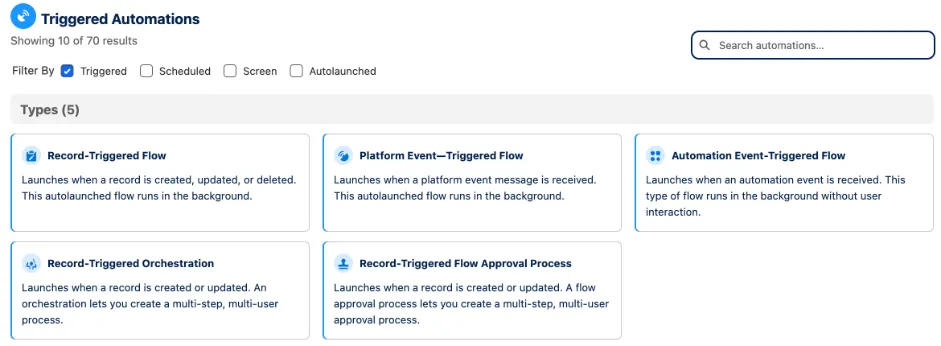
In Setup, open Flows and click New Flow. In the New Automation window, choose Triggered Automations, then Record-Triggered Flow.
2. Set the trigger
Flow Builder opens Configure Start. Fill it in from top to bottom:
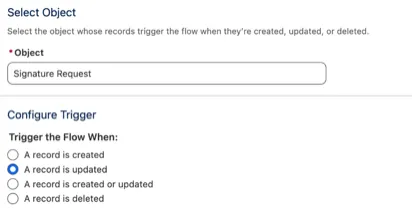
- Object: search for and choose Signature Request.
- Trigger the Flow When: A record is updated.
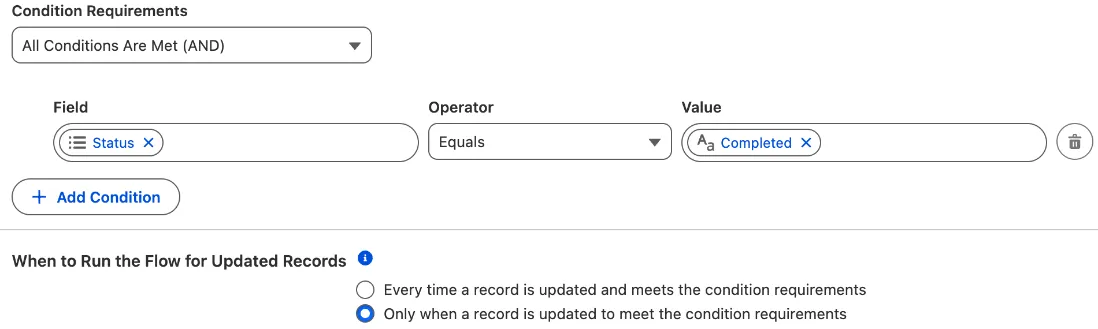
- Condition Requirements: All Conditions Are Met (AND), with one condition: Status Equals Completed.
- When to Run the Flow for Updated Records: Only when a record is updated to meet the condition requirements. The Flow then runs once, when the request is completed, and not on later changes.
3. Add the asynchronous path
Scroll to the bottom of Configure Start. Leave Optimize the Flow for on Actions and Related Records, and turn on Add Asynchronous Path.
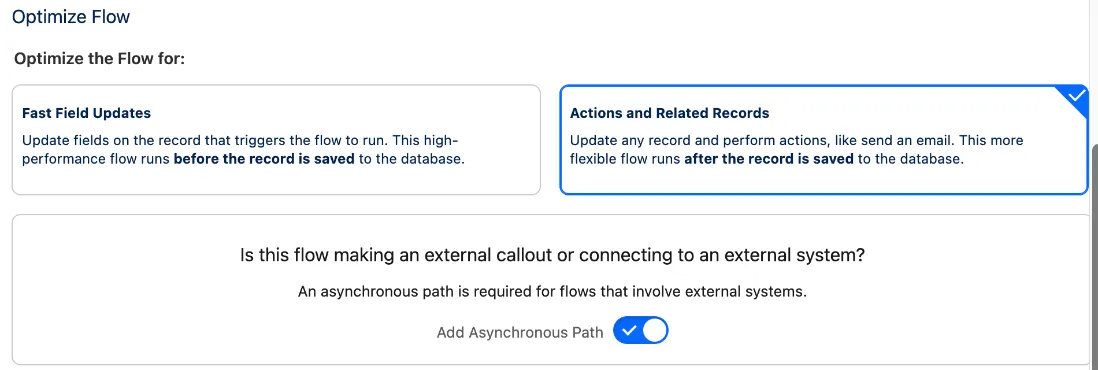
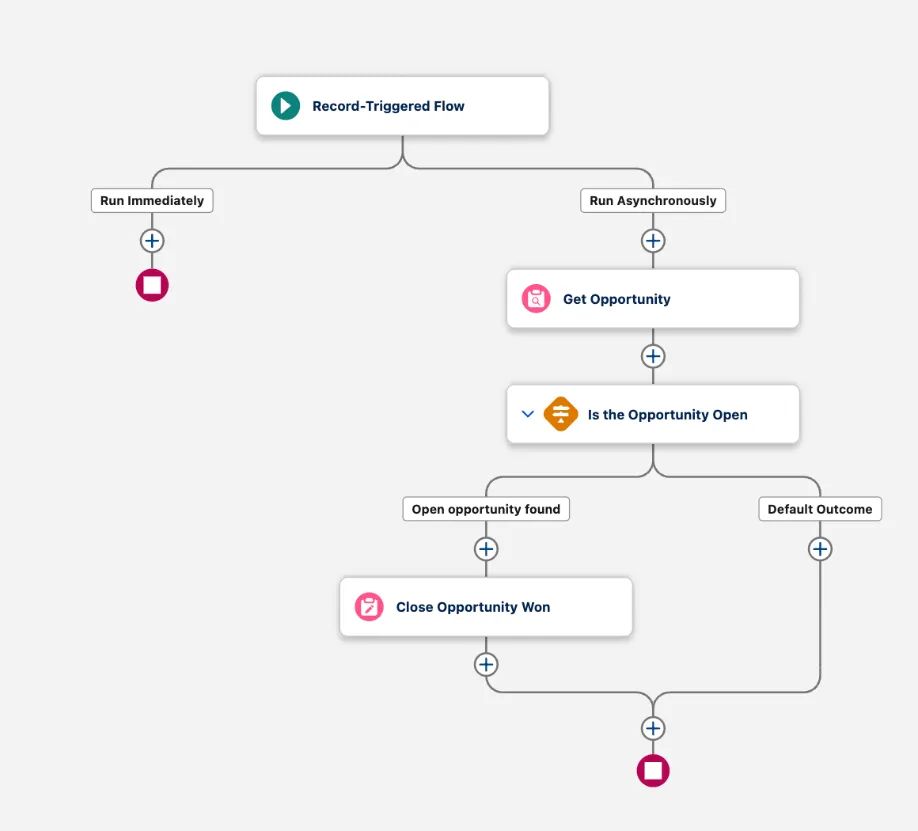
The canvas now shows two paths, Run Immediately and Run Asynchronously. Build every remaining step on Run Asynchronously, and leave Run Immediately empty. See Why the asynchronous path.
4. Find the opportunity
Click + under Run Asynchronously and add Get Records:
- Label:
Get Opportunity. - Object: Opportunity.
- Condition Requirements: All Conditions Are Met (AND), with one condition: Opportunity ID Equals the request’s Source Record Id. To pick it, click Value, then the arrow next to Triggering Signature Request (it can show as
Triggering sliick__Doc_Signature_Request__c), then Source Record Id. - How Many Records to Store: Only the first record.
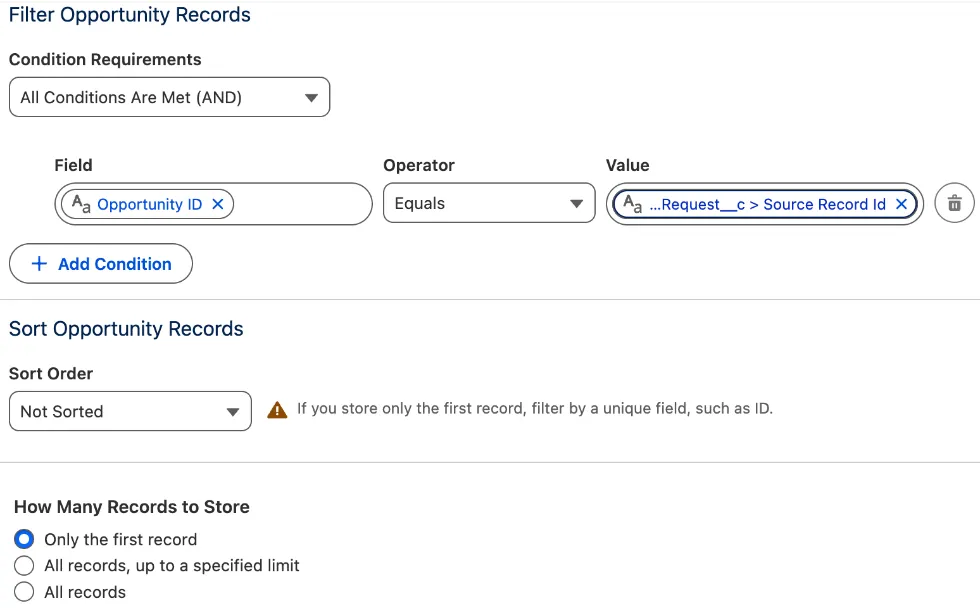
Pick the value from the list rather than typing it. A typed value can stay as plain text instead of becoming a blue reference like the one in the screenshot.
If the request was not sent from an opportunity, this step finds nothing, and the next step stops the Flow.
5. Check the opportunity is still open
Click + under Get Opportunity and add a Decision:
-
Label:
Is the Opportunity Open. -
Name the first outcome Open opportunity found, with All Conditions Are Met (AND) and two conditions:
Resource Operator Value Opportunity from Get Opportunity Is Null False Opportunity from Get Opportunity > Closed Equals False
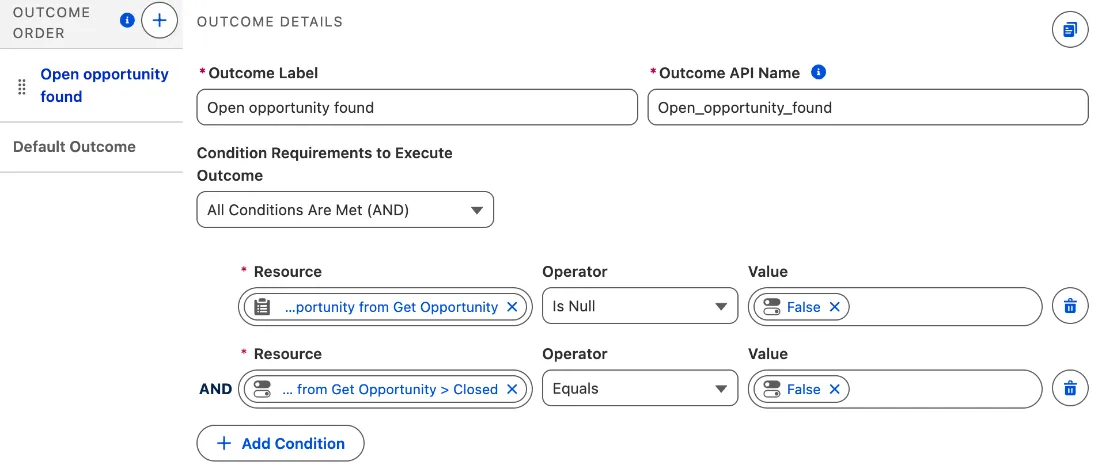
The first condition stops the Flow when no opportunity was found. The second leaves alone an opportunity that is already Closed Won or Closed Lost, so the Flow never overwrites a deal someone closed by hand.
6. Work out the signed date
Open the Toolbox (the panel icon at the top left of Flow Builder) and click New Resource:
-
Resource Type: Formula.
-
API Name:
SignedDate. -
Data Type: Date.
-
Formula:
DATEVALUE({!$Record.sliick__Completed_At__c})
Click Check Syntax. It should say Valid. Then click Done.
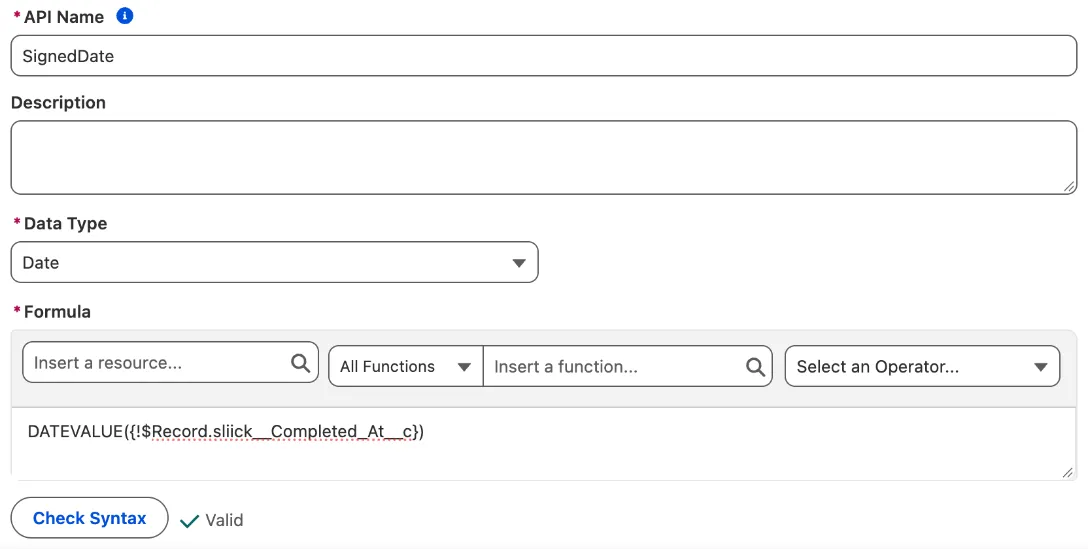
See Getting the right date before you rely on it.
7. Close the opportunity
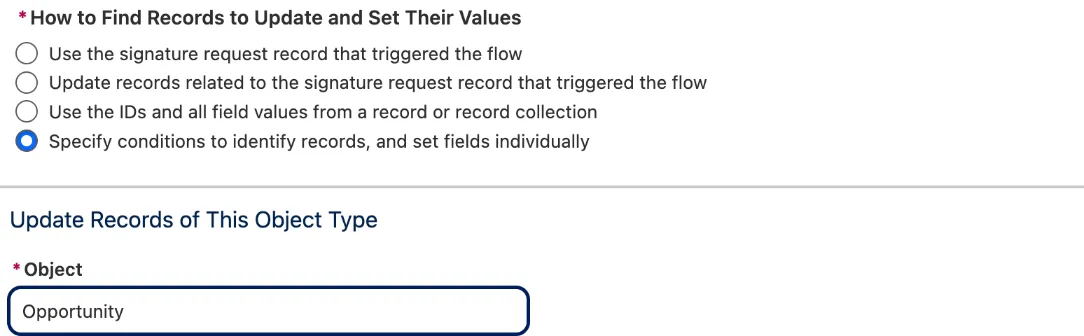
Click + under Open opportunity found and add Update Records:
- Label:
Close Opportunity Won. - How to Find Records to Update and Set Their Values: Specify conditions to identify records, and set fields individually.
- Object: Opportunity.
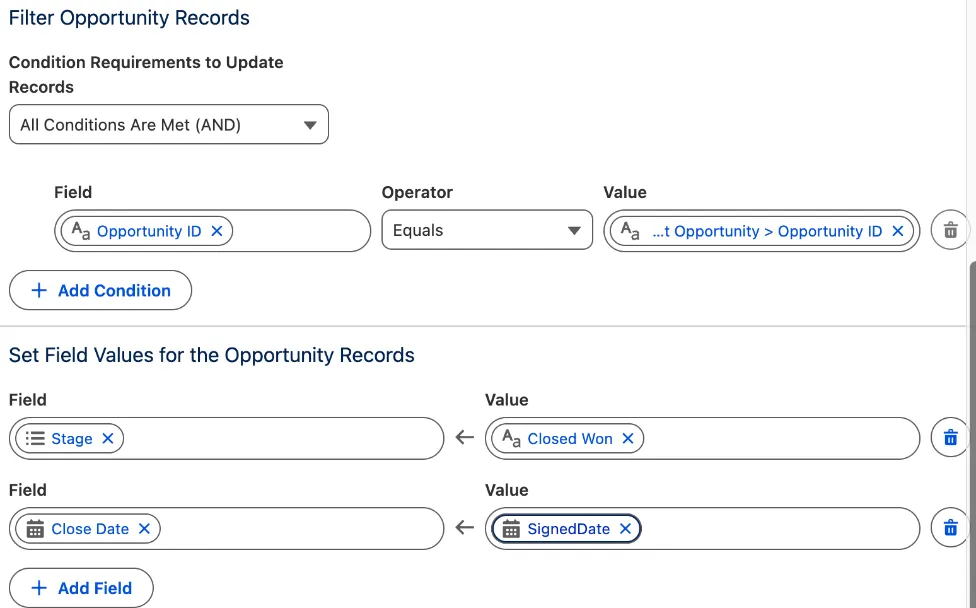
- Filter Opportunity Records: Opportunity ID Equals Opportunity from Get Opportunity > Opportunity ID.
- Set Field Values for the Opportunity Records:
- Stage ← Closed Won
- Close Date ← SignedDate (click Add Field for the second row)
8. Save and activate
Click Save, give the Flow a name such as Close Opportunity When Signing Is Complete, and save again. Your Flow should look like this:
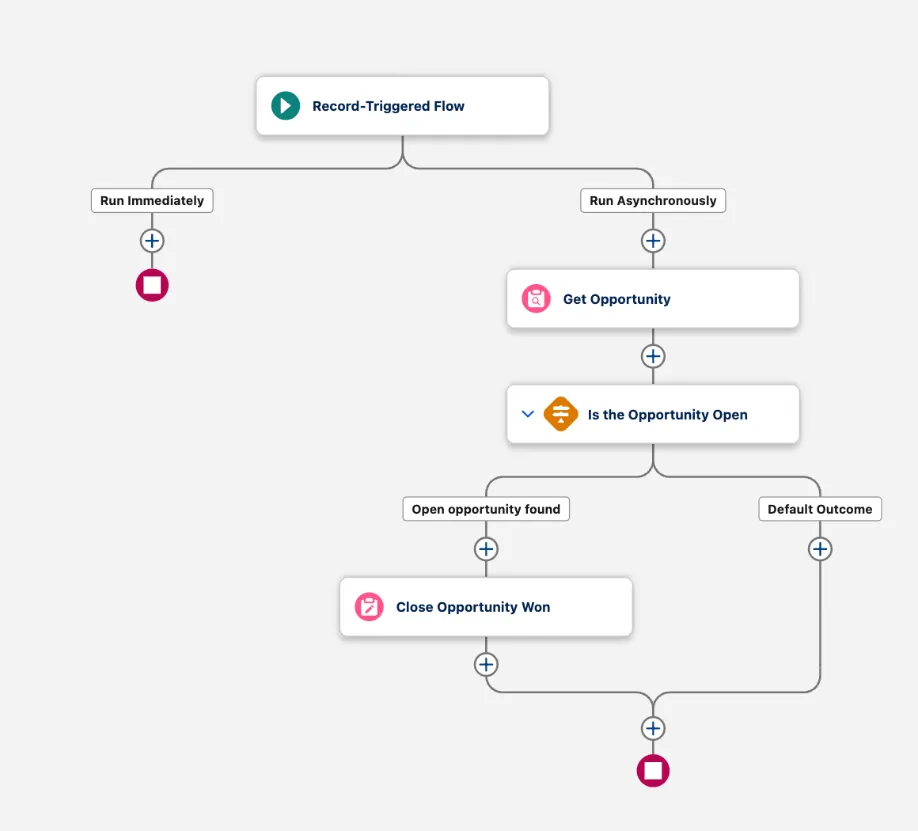
Test it in a sandbox first (see Try it out), then click Activate.
Try it out
- On an open opportunity, send a document for signature with two signers: the customer’s contact, and yourself as the countersigner.
- Sign it as the customer. In a sandbox, Signs in person on each signer is the quickest way: no email is sent, and you sign on the same device.
- Refresh the opportunity. It is still open, because one signature is missing.
- Sign as the countersigner, then refresh the opportunity again a few seconds later. Its Stage is Closed Won and its Close Date is the day of the last signature.
The asynchronous path runs as the person who triggered it. When the last signer signs on your signing site, the opportunity’s Last Modified By shows your site’s guest user. That is expected.
Getting the right date
In a Flow, DATEVALUE gives the date in the time zone of the user the Flow runs as. When the last signer signs on your signing site, that user is the site’s guest user. So SignedDate is the signing day in the guest user’s time zone.
The guest user is often set to GMT. Then the signer’s local date can differ from the date the Flow writes. Behind GMT, as in the Americas, an evening signature gets the next day’s date. Ahead of GMT, as in Australia or Asia, a morning signature gets the previous day’s date.
To fix it, set the guest user to your team’s time zone:
- In Setup, open Sites and click your signing site’s label.
- Click Public Access Settings, then View Users.
- Edit the guest user and set Time Zone to your team’s time zone, such as (GMT-06:00) Central Standard Time (America/Chicago) or (GMT+11:00) Australian Eastern Daylight Time (Australia/Sydney).
Salesforce applies daylight saving time for you, so the formula from step 6 needs no change.
Why the asynchronous path
The last signature is saved first. The asynchronous path then runs on its own, after the save.
If the opportunity update fails, for example because one of your validation rules needs a field filled in before an opportunity can be Closed Won, only the Flow fails. Salesforce emails the Flow error to your admin, and the signature is safe.
On the main path, the same failure would happen while the signature was being saved. The signer would see an error, and their signature would not be recorded.
Variations
- Only for some opportunities. Add conditions to the Decision in step 5, such as a record type or a minimum amount.
- Other records you send from. Source Record Id holds the Id of whatever record you sent from, such as a quote or a contract. To update one of those instead, change the object in steps 4 and 7 and set the fields that record needs.
We'll audit your architecture, security, and integration posture.