Sliick Forms keeps every response in Sliick Responses until someone clicks Process. Then it creates or updates the Salesforce records the form is mapped to. That review step is useful when answers need checking. For a form you trust, such as a registration or sign-up form, you may want the records straight away.
The Flow in this guide processes each new response from one form as soon as it arrives. It uses standard Flow Builder and the Process Sliick Form Submissions action that comes with Sliick Forms, so you don’t need any code.
Before you start
- Map the form to Salesforce first. The Flow does what Process does, using the form’s mapping. See Mapping fields.
- To update records as well as create them, turn on matching. With Use for matching on a field such as Email, a response that matches an existing record updates it instead of creating a new one. See Matching.
- Note the form’s Form ID. The Admin Dashboard shows it under the form’s name, for example
new_patient_registration.
The screenshots use an example form, New Patient Registration for a community health clinic. It maps First name, Last name, Email and Mobile number to a Contact, and matches on Email.
What the Flow watches
Each response is a Form Submission record (sliick__Form_Submission__c), created when the response arrives. The Flow uses four of its values:
- Suspected Duplicate is true when the response looks like a repeat of one already received.
- Failed Validation is true when the response was kept even though some answers failed the form’s checks.
- Is Test is true for a test response sent from the form builder.
- Form Definition > Form ID says which form the response is for.
Build the Flow
1. Create a record-triggered Flow
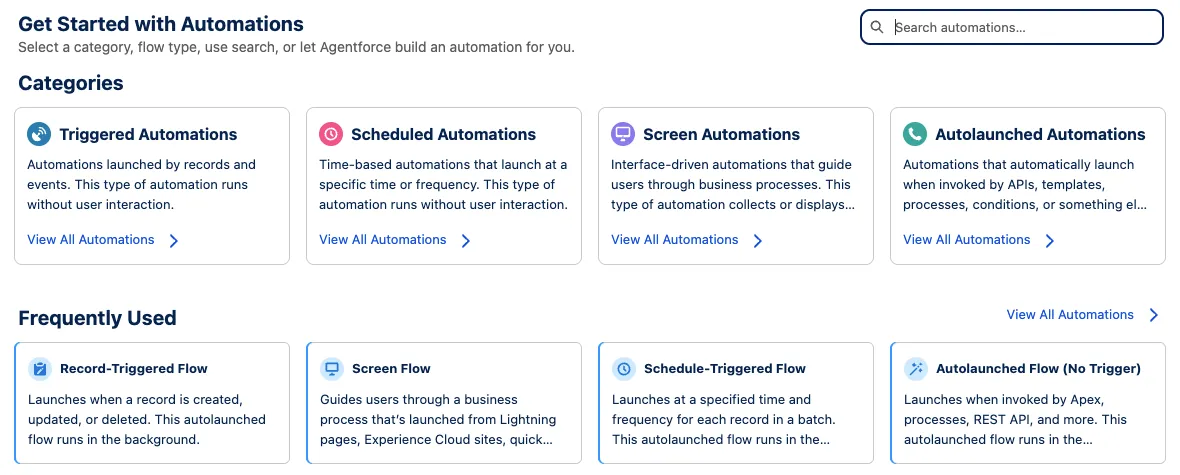
In Setup, open Flows and click New Flow. In the New Automation window, choose Record-Triggered Flow.
2. Set the trigger
Flow Builder opens Configure Start. Fill it in from top to bottom:
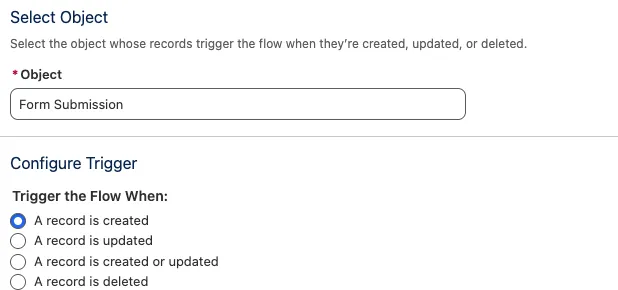
- Object: search for and choose Form Submission.
- Trigger the Flow When: A record is created.
-
Condition Requirements: All Conditions Are Met (AND), with three conditions:
Field Operator Value Suspected Duplicate Equals False Failed Validation Equals False Is Test Equals False Pick False from the list under Global Constants. Don’t type it.
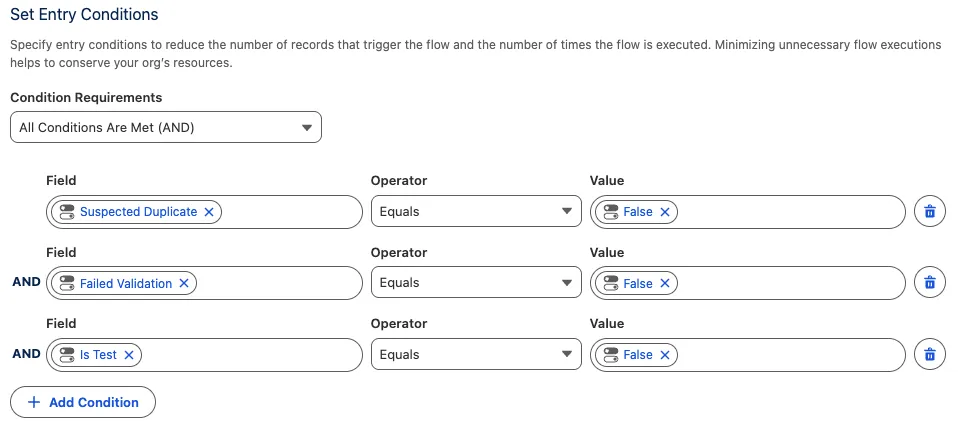
These conditions keep a person in the loop where one is needed. A suspected duplicate or a response that failed validation stays in Sliick Responses for someone to check. A test response from the form builder never creates a real record.
3. Add the asynchronous path
Scroll to the bottom of Configure Start. Leave Optimize the Flow for on Actions and Related Records, and turn on Add Asynchronous Path.
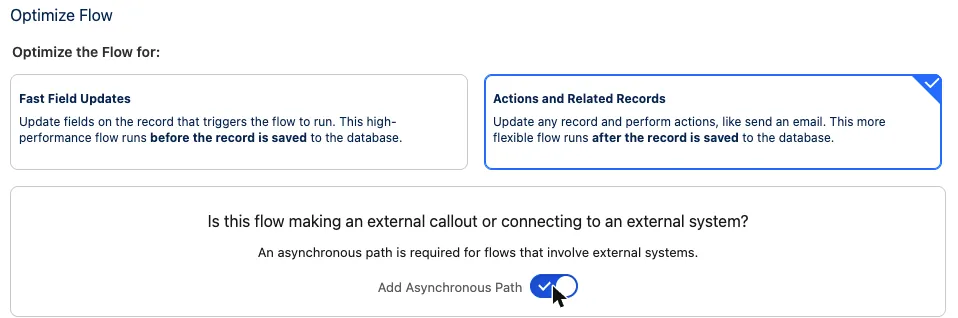
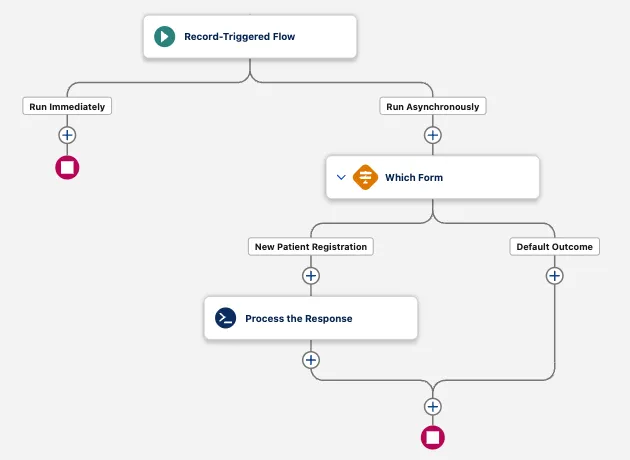
Close the panel. The canvas now shows two paths, Run Immediately and Run Asynchronously. Build every remaining step on Run Asynchronously, and leave Run Immediately empty. See Why the asynchronous path.
4. Pick the form
Click + under Run Asynchronously and add a Decision:
- Label:
Which Form. - Name the first outcome after your form, for example New Patient Registration, with All Conditions Are Met (AND) and one condition:
- Resource: click it, then the arrow next to Triggering Form Submission (it can show as
Triggering sliick__Form_Submission__c), then the arrow next to Form Definition, then Form ID. - Operator: Equals.
- Value: your form’s Form ID, such as
new_patient_registration.
- Resource: click it, then the arrow next to Triggering Form Submission (it can show as
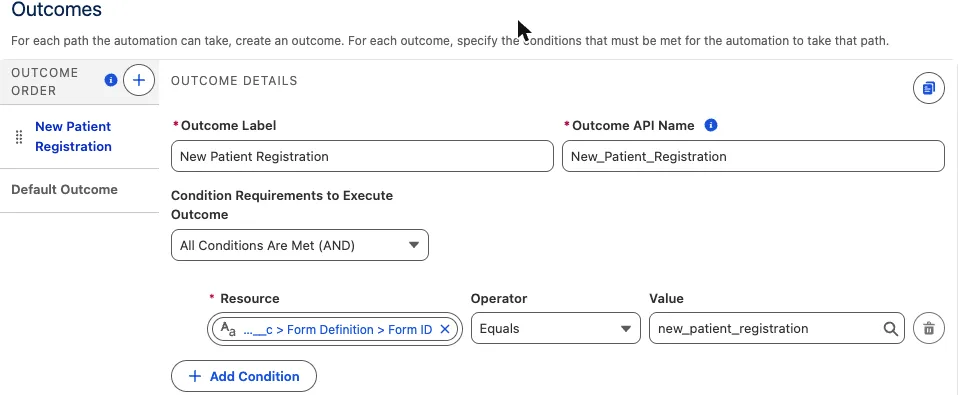
Pick the resource from the list rather than typing it, so it becomes a blue reference like the one in the screenshot.
Responses to your other forms take the Default Outcome, which does nothing, so they still wait in Sliick Responses. To process another form automatically too, add an outcome for it with its own Form ID.
5. Process the response
Click + under the New Patient Registration outcome, search for Process Sliick, and add Process Sliick Form Submissions:
- Label:
Process the Response. Flow Builder fills in API Name from the label, so it showsProcess_the_Response. That’s this step’s own name in your Flow, not part of Sliick Forms. - submissionIds: click the box, then the arrow next to Triggering Form Submission, then Record ID.
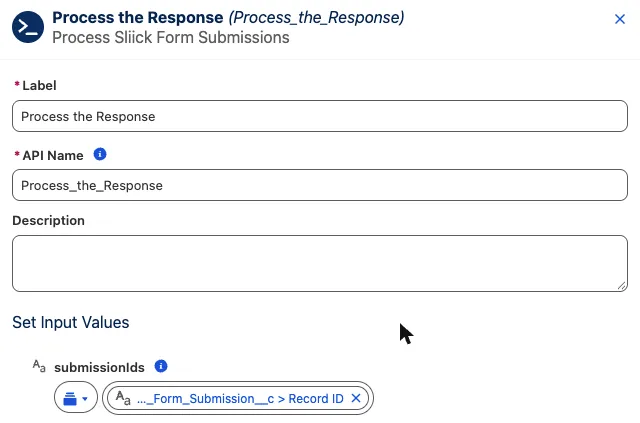
For what the action returns, see Process responses from a Flow.
6. Save and activate
Click Save, give the Flow a name such as Process New Patient Registrations Automatically, and save again. Your Flow should look like this:
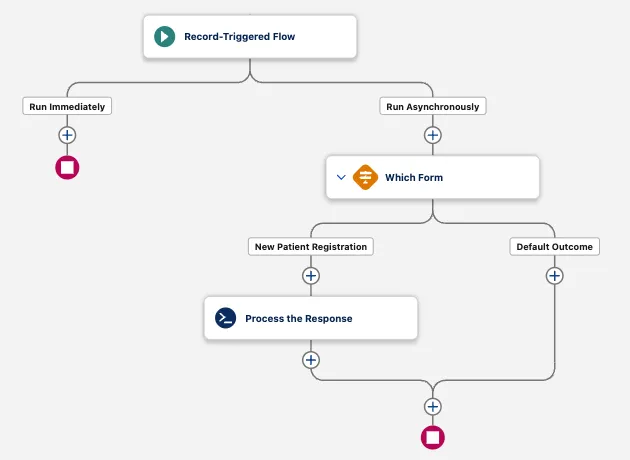
Test it in a sandbox first (see Try it out), then click Activate.
Try it out
- Open the form’s public link and submit a response with an email address that isn’t in Salesforce yet.
- Open Sliick Responses. Within a few seconds the response shows Completed, and Result / Error links to the new contact.
- Submit the form again with the same email address and a different mobile number.
- That response is Completed too. The existing contact now has the new mobile number, and no second contact was created. An update doesn’t add a link in Result / Error, so open the contact to see the change.

If a response can’t be processed, for example because a validation rule on Contact rejects its values, it is marked Failed with the reason on its row. Fix the cause and click Retry, as you would for a response you processed yourself. See Processing responses.
Who owns the new records
Public-form responses are saved by Salesforce’s Automated Process user, so the Flow runs as that user too. A record it creates is owned by Automated Process, and Created By and Last Modified By show it as well.

To give new records a real owner, set the owner in the form itself:
- In the form builder, add a Hidden Field, for example labelled
Owner. - Map it to the owner field of the record the form creates, such as Contact > Owner ID.
- Set its Default Value to the Id of the user who should own the records. To find a user’s Id, open the user in Setup and copy the value that starts with
005from the page address. - Leave Accept a value from the page link off, then save and republish the form.
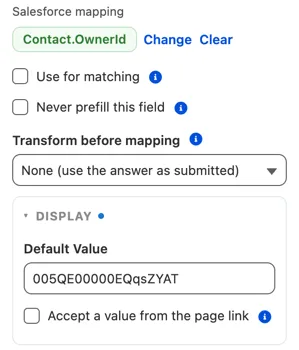
New records are then owned by that user. Created By still shows Automated Process.

A hidden field isn’t a security control. Someone who sends their own request instead of using the form can put a different value in it. Don’t rely on the owner it sets to decide who may see a record.
Why the asynchronous path
Each response is saved first. The asynchronous path then runs on its own, after the save, so processing can never stop a response from being saved.
On Run Immediately, processing would run while the response is still being saved, so an unexpected error there could stop the response from being saved. On the asynchronous path, the worst case is a response marked Failed in Sliick Responses, ready to retry.
Good to know
- The Flow only sees new responses. A suspected duplicate or failed-validation response that someone later marks genuine or accepts isn’t processed by the Flow. Process it from Sliick Responses.
- Responses that arrived before you activated the Flow stay in Sliick Responses. Select them and click Process Selected.
- Matching finds records the Automated Process user can see. In our tests it matched and updated contacts owned by other users.
- We tested this with forms that create and update Contacts. If a response for another object fails with an access error, click Process on its row in Sliick Responses, which uses your own access, and tell us at support.
We'll audit your architecture, security, and integration posture.